Audio Recorder and Distrobox on Linux
Written on Mar 7, 2026
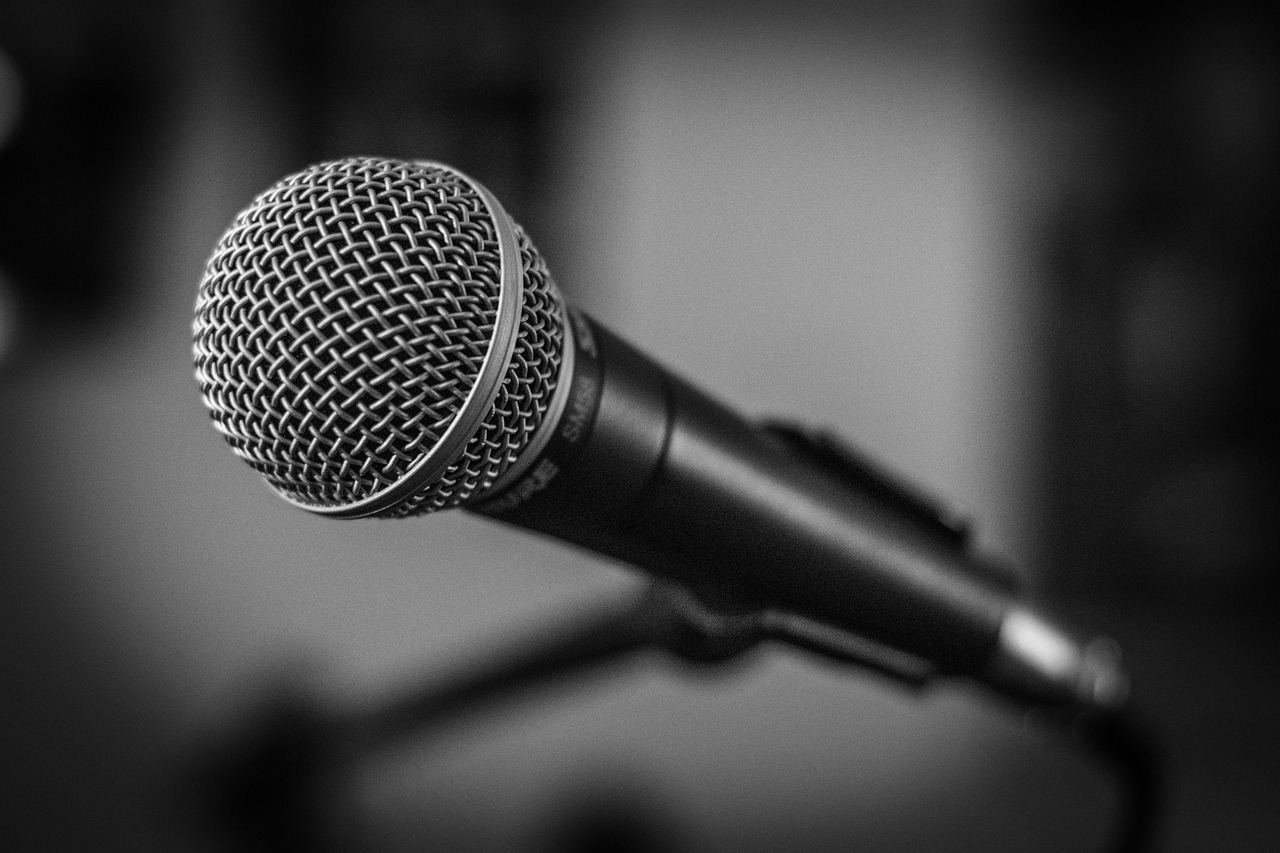
If you aren't a true audiophile, you can enjoy music even when it isn't played or streamed at a high bit rate. You probably still listen to music on a radio, which is often broadcast as low as 128 kbps.
When you record, you get to choose the quality. The Audio Recorder application records music from multiple sources in various formats (both lossy and lossless) and was developed for Ubuntu.
It's available in the Arch User Repository (AUR) for Arch Linux-based distributions. Although it can't be found in any Ubuntu-based repositories, and the personal package archive (PPA) won't work, the ".deb" file itself can be obtained from the PPA here:
Although it isn't supposed to support any Ubuntu-based distribution newer than Ubuntu 24.04, I successfully installed the .deb file on Kubuntu 25.10. It'll probably install on the next version of Linux Mint as well.
If that doesn't work, I'll show you how to use the AUR with Distrobox shortly.
Audio Recorder Settings
I like to record from Spotify. When I've built up a long playlist, I'll upgrade to premium for a month. That's more than sufficient to record a playlist.
Before I begin recording, I ensure I've already downloaded the music (within Spotify) at the "Very high". The recordings can "stutter" if I record them without downloading them first.
Premium subscribers receive 320 kbps everywhere, while lossless streaming is available in only some locations. I prefer 320 kbps for recording anyway. Lossless recordings take up a lot more space.
I have to launch Spotify before launching Audio Recorder or it won't be available as a "Source" on the front screen. Once I select the format as "MP3 Lossy 44KHz", I click on the box for "Additional Settings" and then the "Recording commands" tab.
I replace the command displayed with:
audio/x-raw,rate=44100,channels=2 ! lamemp3enc name=enc target=bitrate cbr=true bitrate=320
The audio recorder begins recording when the first song in the playlist starts playing and automatically moves to the next song until the playlist is complete. After it finishes recording, I have to look up the information for each song.
It's usually easy to find that information on Wikipedia, otherwise I have to Google it, and that takes longer. I have more than 2800 music files created this way, which adds up to eight days of continuous playback.
Install Distrobox
If the ".deb" file won't work, Audio Recorder can be obtained from an Arch container using Distrobox. The repository version of Distrobox is usually outdated, so it can also be installed from a PPA:
sudo add-apt-repository ppa:michel-slm/distrobox
sudo apt update
sudo apt install distrobox
Once installed, follow the steps below in the terminal. There are GUI apps to do this, but this isn't complicated enough for me to bother.
Create an Arch Container and Use It
distrobox create --name Arch --image docker.io/library/archlinux:latest
distrobox enter Arch
At this point, you're in the Arch container.
Install Yay on Arch
Yay is the interface to the AUR. As far as I know, it's the only place to get Audio Recorder outside of Ubuntu-based distributions. Install Yay:
git clone https:/aur.archlinux.org/yay-bin.git
cd yay-bin
sudo pacman -S base-devel
makepkg -si
Install Audio Recorder
yay -S audio-recorder
Export Audio Recorder to the Host
distrobox-export --app audio-recorder
When finished, the application shows up in the appropriate category in the menu, with "(on Arch)" tacked onto the end of the title.
At this point, you can enter "logout" or "exit" to exit the container.
Uninstall the Container
If Audio Recorder is no longer needed:
distrobox stop Arch
distrobox rm Arch
If Distrobox is no longer needed:
sudo apt purge --autoremove distrobox
I've only used Distrobox once, and only to see if I could make this work. I don't know if I'll ever need to do it again.
Image by Cornelia Schneider-Frank from Pixabay