Disable Passwords on Linux
Sep 12, 2026
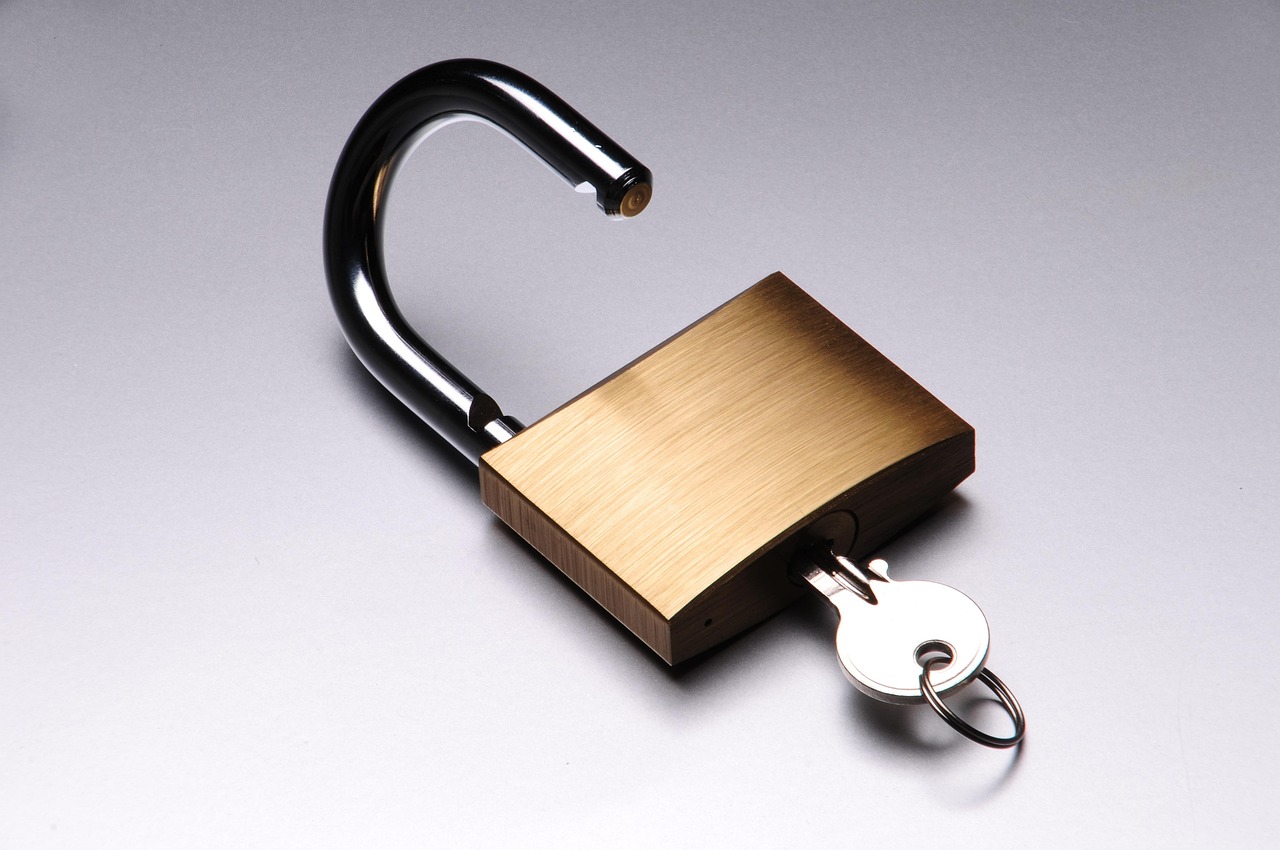
Although it's possible to disable password authentication on Linux, it isn't a good idea to do so. Other than using it for logging in, it serves to protect you from yourself and prevent privilege escalation by others.
I strongly dislike typing a password a thousand times when working with virtual machines. The first thing I do after creating one is to disable everything requiring authentication on it. The host needs authentication in my situation, but the guest does not.
Disable Sudo Password Authentication
At the terminal, type:
sudo visudo
Go to the end of the file and enter:
username ALL=(ALL) NOPASSWD: ALL
Replace "username" with your username, of course. When you exit the terminal and re-enter it, you won't need to enter a sudo password when using sudo in a command.
To re-enable sudo password authentication, either remove that line or place "#" in front of it. Exit the terminal and when re-entering the terminal, you'll once again have to type a password with sudo as part of a command.
Disable Desktop Interface Password Authentication
At the terminal, type:
sudo nano /etc/polkit-1/rules.d/disable.rules
Add this and save:
polkit.addRule(function(action, subject) {
return polkit.Result.YES;
});
Log out and log back in, then the next time you use the desktop interface to install or remove software or make changes, you won't need to enter a password.
To re-enable password authentication, remove that file, or place "#" at the front of each line. Again, log out and log back in.
Automatic Login and Keyring Passwords
It does no good to use an automatic login if your keyring database requires a password. If you have your system set up to automatically log you in, just opening Firefox or some other web browser will prompt you for a password.
If you're trying to avoid entering passwords, you might as well set the keyring login password to a blank field. It's called "Passwords and Keys" on Linux Mint, with the actual filename being "seahorse". I have no experience with this on other distributions.
Using Passwords
As I mentioned earlier, I disable passwords on my virtual machines. My host machines, my mini PC and laptop, are always password protected. I'm paranoid about security when I leave home, even if only for a couple of hours, so I use a power-on password for both of them.
While I only reboot when required and rarely shut my mini PC completely down when I'm home, I always shut it down when I'm going to be away from home. I rarely use my laptop, so it's almost always completely shut down and stashed inside my wardrobe cabinet.
Some Linux distributions require six-character minimum passwords when setting them up. In those cases, I'll change them to 4-digit passwords using the "passwd" command in the terminal. Entering a password is the only purpose the keyboard number pad serves for me.
Image by ComMkt from Pixabay
Originally written on March 8, 2026. Rewritten for clarity and additional information.