Kubuntu
Jul 31, 2026
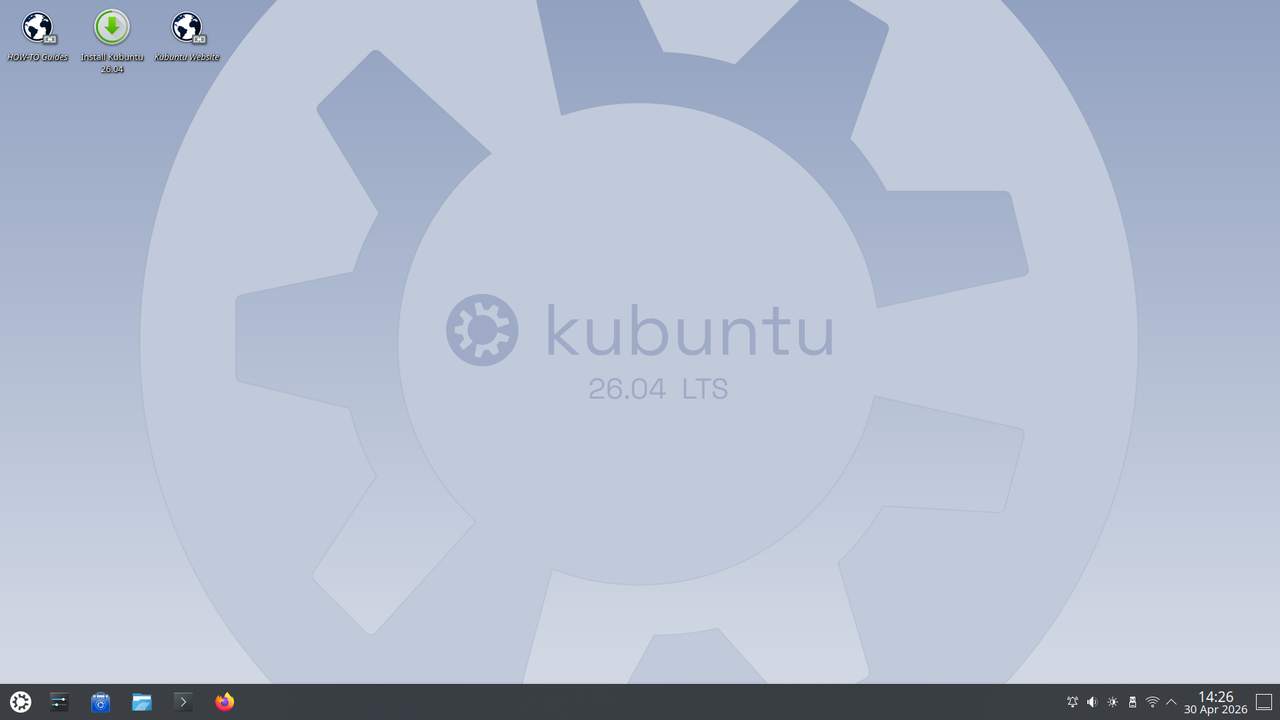
I've mentioned Kubuntu in previous articles, so this isn't new territory. I like Kubuntu, and the fact that it includes the Canonical Snap software packaging and deployment system doesn't really bother me. It's easy to remove it with the right instructions.
I installed Kubuntu in a VirtualBox virtual machine for two reasons. The first was to discover the best way to replace the Snap system. It had to be something that would work on any distribution using it. Scripts designed only for Kubuntu wouldn't work elsewhere.
The second reason was to see if enabling Kubuntu backports was something worth doing. Supposedly, it would allow me to have the latest stable version of KDE Plasma and supporting applications installed.
I anticipated mistakes. After I installed Kubuntu in the virtual machine, and after I updated everything, I made a backup copy of the directory. If necessary, I could delete the original directory and rename the copy. That would be much easier than reinstalling.
This is for Kubuntu LTS 26.04. While these instructions may work for the next LTS version, they won't work for the previous version because of the Mozilla information.
Preparation
Install Kubuntu and ensure all the packages are up-to-date. Open Firefox to this page and copy the terminal instructions to a text file, especially if you're relying on your only computer to do all of this. You'll be removing Firefox before installing another version of it.
Until Firefox is installed directly from Mozilla.org, everything will take place in the terminal. If you use a standard text file (not an office document), you should be able to use copy and paste.
Remove the Snap System
Before you start to remove the Snap system, remove the Firefox and Thunderbird Snaps:
sudo snap remove firefox thunderbird
This will take a few minutes. Now you can remove the Snap system itself:
sudo apt purge snapd libsnapd-qt-2-1 squashfs-tools plasma-discover-backend-snap
While you'll be installing Firefox from Mozilla, you'll be installing Thunderbird (if you want it) as a Flatpak from Flathub.
Set Up APT Preferences
Get the signing key from Mozilla:
wget -q https://packages.mozilla.org/apt/repo-signing-key.gpg -O- | sudo tee /etc/apt/keyrings/packages.mozilla.org.asc > /dev/null
Install the source file for the Mozilla repository:
echo "deb [signed-by=/etc/apt/keyrings/packages.mozilla.org.asc] https://packages.mozilla.org/apt mozilla main" | sudo tee /etc/apt/sources.list.d/mozilla.list > /dev/null
Enter these two commands in the terminal, exactly as given. They'll prevent the Snap system from being reinstalled and make Mozilla the preferred source for Firefox:
echo 'Package: snapd
Pin: release a=*
Pin-Priority: -10' | sudo tee /etc/apt/preferences.d/nosnap.pref
echo 'Package: *
Pin: origin "packages.mozilla.org"
Pin-Priority: 1000' | sudo tee /etc/apt/preferences.d/mozilla.pref
Install Firefox
You may want to log out and then log back in to ensure the system reads the new files properly. That's what I always do when I'm adding or altering system files.
Update and then install Firefox:
sudo apt update && sudo apt install firefox
You may be notified of pending upgrades, but you shouldn't see any errors.
Install the Flatpak Software Packaging and Deployment System
These instructions will enable Flatpaks and integrate them into the Discover application. Install Flatpak:
sudo apt update && sudo apt install flatpak
Enable the Flathub repository:
flatpak remote-add --if-not-exists flathub https://flathub.org/repo/flathub.flatpakrepo
Integrate Flatpak into Discover:
sudo apt install plasma-discover-backend-flatpak
If you want to manage permissions, install the Flatpak Permissions Settings module for the System Settings:
sudo apt install kde-config-flatpak
Log out and log in again to see Flatpaks inside the Discover application. I installed Thunderbird and the permissions module. I then checked Application Permissions for Thunderbird and saw the option to Manage Flatpak Settings.
Enable Backports
There are only two commands to use:
sudo add-apt-repository ppa:kubuntu-ppa/backports
sudo apt update
Using backports wasn't worth the effort. It only increased the version by one point. If I want the most recent version of KDE Plasma, I should go with KDE Neon, which is several points higher.
Summary
I did everything I intended to do. Luckily, I didn't make any mistakes that couldn't be fixed on the spot. I haven't used Thunderbird in years because I use Gmail online. This was just to ensure I could install it should I ever need to do so.
This routine should work for KDE Neon and any other Ubuntu derivative that uses the Snap system, except for the backports. I'm more likely to install something based on Arch because I wouldn't have to do any of this.
Image by Kubuntu devs, GPL, via Wikimedia Commons