External Drives Instead of Virtual Machines
Sep 6, 2026
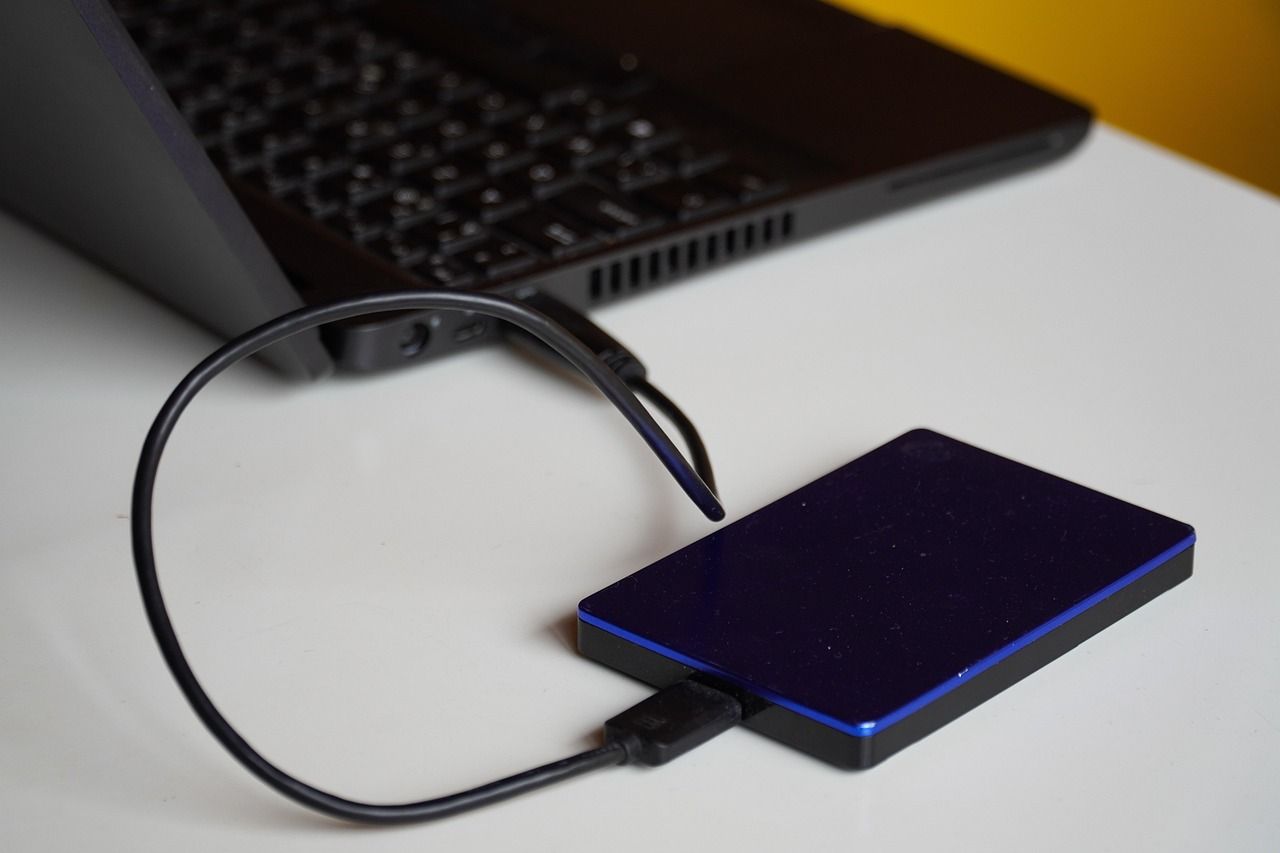
I do most of my Linux distribution testing with virtual machines. If I need to test software I'm not familiar with, I'll usually do that within a virtual machine. There are times, however, when I need to use external drives to test distributions and software.
I have multiple external drives at my disposal. Except for one 2.5-inch 4-terabyte hard disk drive (HDD), each one is a 2.5-inch solid-state drive (SSD). Each one is portable, contained in its own case.
Installing to an External Drive
There are two ways, that I know of, to install a Linux distribution on an external drive. The first one is by copying an ISO file onto a USB flash drive and installing from there. The other is by creating a virtual machine and installing from there. I prefer the second way.
I use VirtualBox as my virtualization software. When creating a virtual machine for external installation purposes, I create it without a virtual hard disk. I then go back into the settings and attach the SSD as a USB device. The only difficulty is identifying it in the context menu.
Once the distribution is installed on the external drive, I delete the virtual machine since I no longer need it.
Booting an External Drive
The UEFI settings allow booting with a specific function key, depending on the computer manufacturer and model. While this way works, it's easier to add the external drive to the GRUB boot menu. I don't recommend doing it by hand since it can be done automatically.
This has to be done while the external drive is plugged in and accessible. I have push-button switches on my USB hub, and it's easy to forget to push the right one. The terminal command to update GRUB is:
sudo update-grub
With Linux Mint, it's easier and better to use the "System Administration" application because it allows me to edit certain parameters as well.
Using an External Drive
As long as I'm using an SSD for it, I don't see much of a difference in speed. I tried it once with an HDD and it was too slow. Using an external SSD is the best way to maintain a backup system in case something happens to my main system.
With an HDD, the bottleneck is the drive. With an SSD, the bottleneck is the USB port. A SATA interface is a little faster than a USB 3.2 Gen 1 port, but slower than a USB 3.2 Gen 2 port. An NVMe drive is much faster than anything SATA.
Although I maintain backups, it takes time to restore them. If I need to take care of something immediately, it's much faster to boot the external drive and take care of business. I can always restore when it's more convenient.
Trim
The ATA command set refers to it as "trim", while the SCSI command set calls it "unmap". The "fstrim" command will automatically execute on an external drive just like it does on an internal drive when booting up with it, to make discarded blocks available again.
Unfortunately it won't do anything if the provisioning mode on a SATA solid-state drive isn't set to "unmap" (I have no experience with an NVMe solid-state drive). You can read the provisioning mode with this command, assuming your drive is "sdb":
cat /sys/block/sdb/device/scsi_disk/*/provisioning_mode
When I boot from my external drive, the provisioning mode reads as "full". The "fstrim" command fails if I run it manually. When I change the provisioning mode to "unmap", it works and then changes to "disabled".
To ensure the drive is trimmed weekly, I use a script file invoked by a cron job hourly, executed by root (sudo crontab -e):
if [ "cat /sys/block/sdb/device/scsi_disk/*/provisioning_mode" != "unmap" ] ; then
    echo unmap | tee /sys/block/sdb/device/scsi_disk/*/provisioning_mode
fi
It obviously doesn't do anything if the provisioning mode is already set correctly. It should be changed to "unmap" within an hour of the weekly "fstrim" command.
Image by Jan Van Bizar from Pixabay
Updated on September 21, 2026.